

How do you export a trial balance from Sage 200?
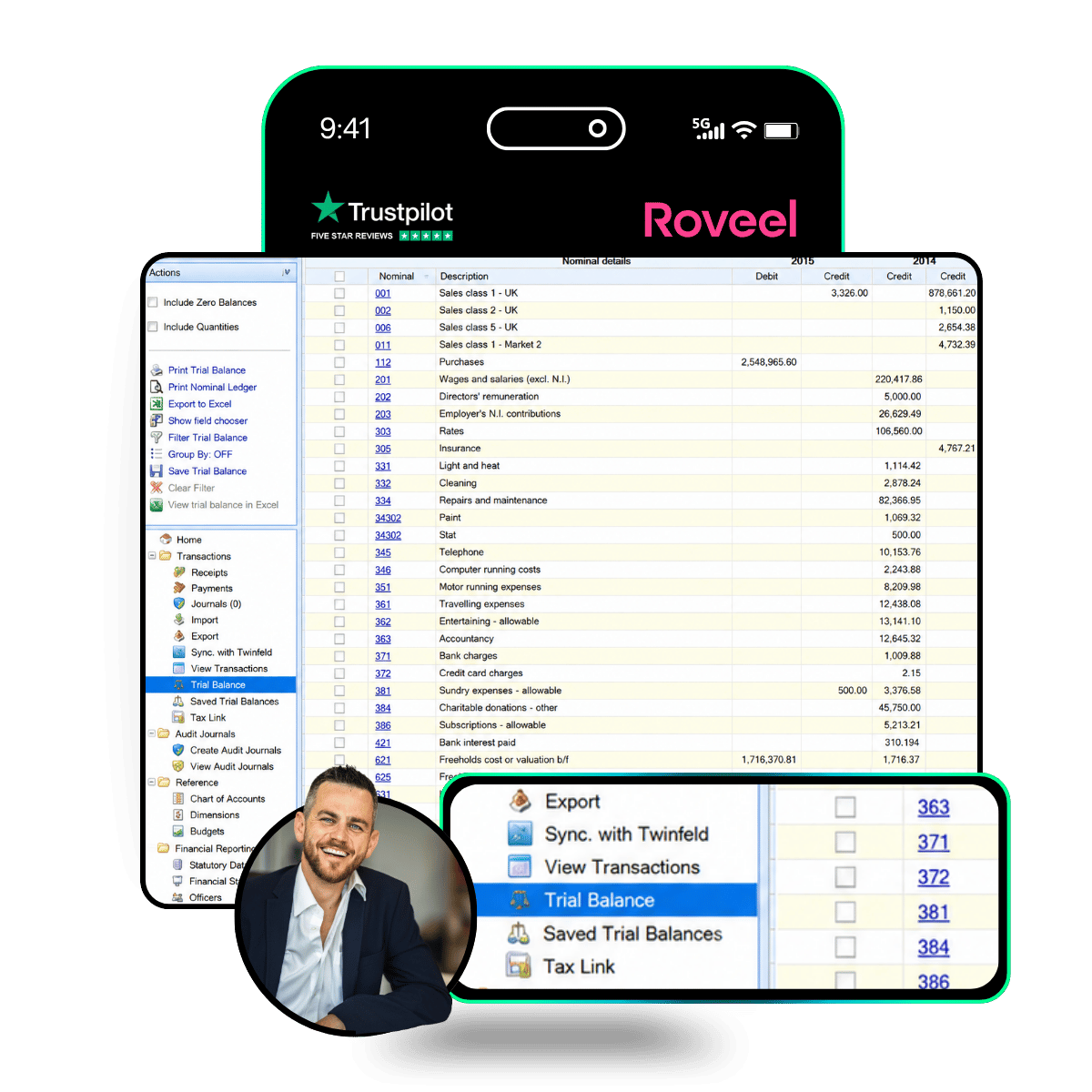
To export a trial balance from Sage 200, go to Nominal Ledger > Reports and select Trial Balance. Choose the required accounting period or date range, then send the report to Preview. From the preview window, you can export the trial balance to Excel, CSV or PDF.
If you need to compare multiple periods, Sage 200 requires you to run and export the trial balance separately for each period, then combine the reports manually in Excel. For more flexible trial balance analysis, Roveel provides a pre-built dashboard where you can select different periods, compare balances and drill down directly into the underlying nominal transactions.
Exporting a trial balance from Sage 200
Sage 200’s Trial Balance report gives you a summary of your nominal ledger balances for a selected period. To export it:
- Open Nominal Ledger.
- Go to Reports.
- Select Trial Balance.
- Choose the required period or date range.
- Send the report to Preview.
- Export the report to Excel, CSV or PDF.
This is useful when you need a basic trial balance export for a particular period. However, if you’re regularly analysing financial data across multiple periods, there are additional steps involved.
Comparing multiple trial balance periods
If you want to view several periods side by side in Sage 200, you generally need to run the Trial Balance report for each period individually and export each result.
The separate files can then be combined and compared in Excel. This means more manual work when you’re preparing monthly management accounts, reviewing period movements or investigating changes in nominal balances.
Changing the trial balance layout
If you need different columns or information in the Sage 200 trial balance report, you may need to edit the report layout using Report Designer. This gives you more control over the report output, but requires additional setup if the standard layout doesn’t contain the information you need.
How Roveel makes trial balance analysis easier
Roveel takes a different approach to trial balance reporting.
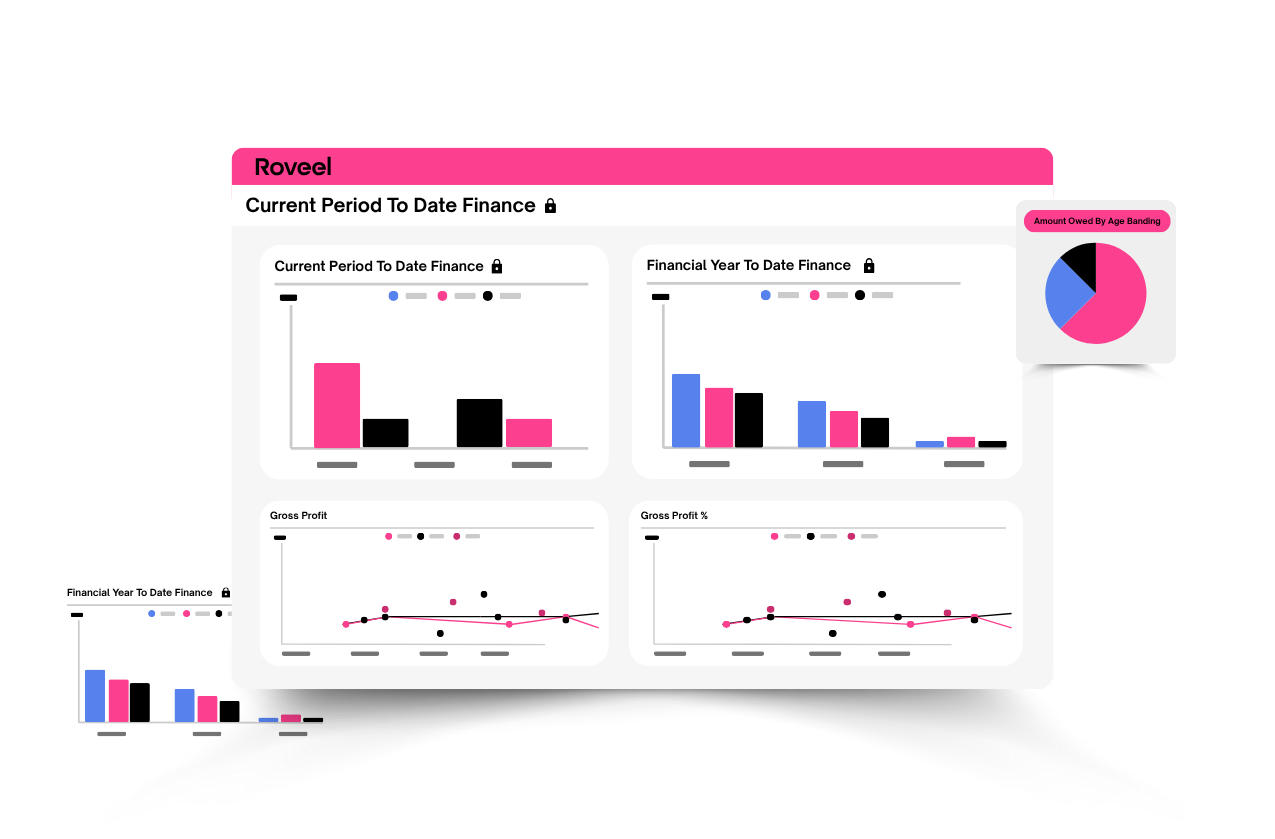
Instead of generating a separate report for each period, the trial balance is available as a pre-built dashboard. You can select the period you’re interested in and view the balances immediately.
You can also drill down from a trial balance figure into the underlying nominal transactions, making it easier to understand what’s driving a balance without having to leave the report and investigate the data separately.
For multi-period analysis, you can move between periods from the dashboard rather than repeatedly running and exporting individual Sage 200 reports. When you need to share your analysis, you can export it to Excel or PDF in one step.
Sage 200 trial balance vs Roveel
Sage 200 is useful for generating and exporting a standard trial balance. Roveel is designed to make the analysis around that trial balance faster, particularly when you need to compare periods, investigate balances and get from a summary figure to the underlying transactions.
If your current process involves running multiple trial balance reports and stitching them together in Excel, Roveel can reduce that manual reporting work.